
4Frames
20Channels
Canvas2 × 4K or 16 megapixels, any aspect ratio

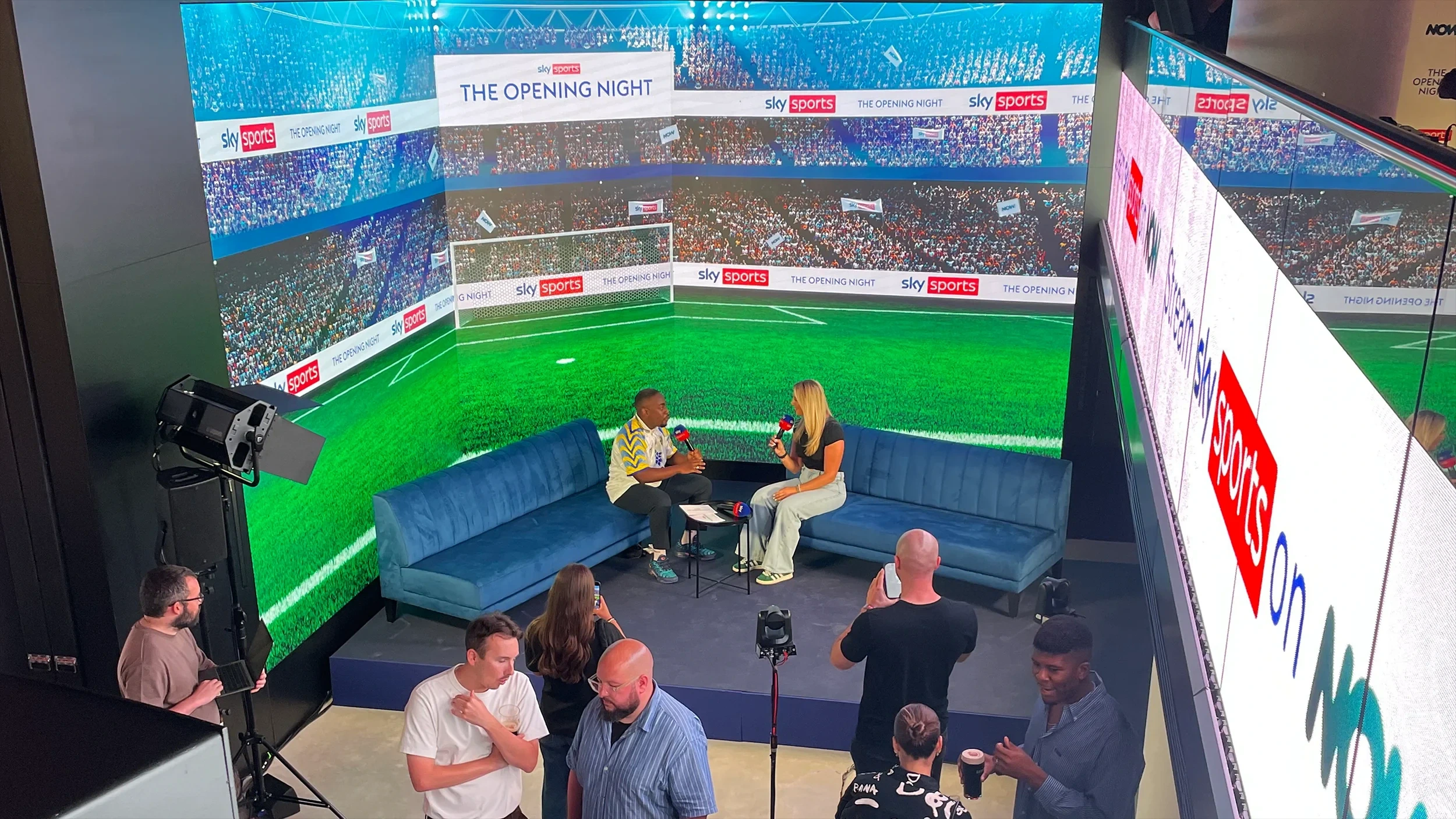
Technical overview · On-premises graphics & media server
How CanvasPro One and CanvasPro One Max are built, connected, scheduled and run: a guide for the engineers who install them and the teams who operate them every day.
Technical overview · 2026
CanvasPro One and One Max share the same software, interface and workflow. The licence sets the number of frames, the canvas size and the number of channels.
Canvas2 × 4K or 16 megapixels, any aspect ratio

Canvas8K+ or 33 megapixels, any aspect ratio
A frame is a region of the canvas, not a physical output. One frame can be a single screen, part of a screen, or a whole video wall fed through an LED processor.
Each server plays from its own local storage and runs its schedule on its own clock. The only internet connection it needs is outbound, for the daily licence check.
Inputs
CanvasPro One server
Outputs & control
Separate services
Web interface, playout, rendering and previews run as separate processes, so one failing does not take down the rest.
Self-monitoring
Services are watched and restarted on sustained failure. If the playout engine restarts, the scene on air stays on air.
No inbound internet
Operators connect over the local network. The server needs no inbound access from the internet.
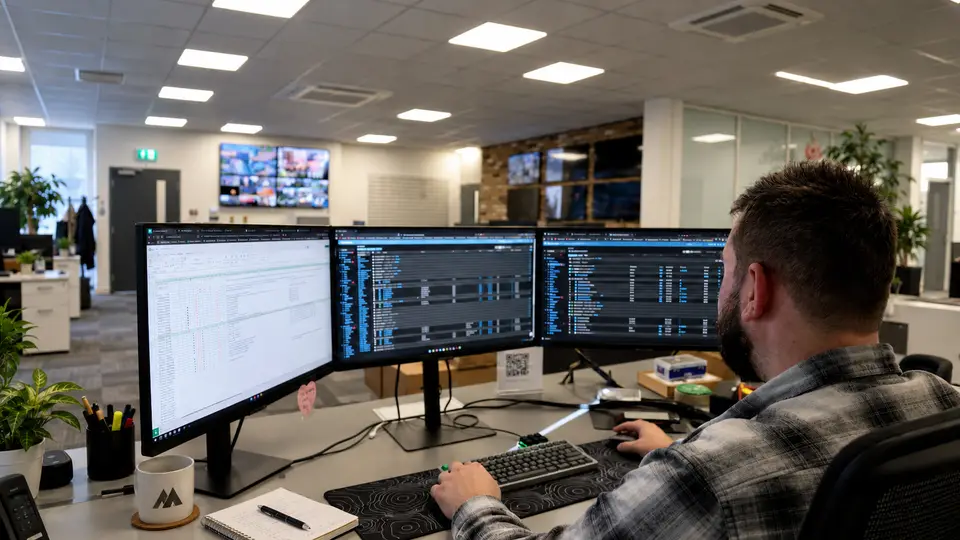
Service desk, monitoring and incident management from the team behind the platform.
Every piece of content follows the same hierarchy. Learn it once and every screen, schedule and live change works the same way.
Every scene starts from one of twoDrop in an asset, a media file or live source, to play it as it is, or start from a template and fill its variable slots.
Watch folders
Ingest from local, network or Dropbox folders.
GPU conversion
Optional rules convert images to DDS and video to HAP. Originals are always kept.
Safe to change
Media in use cannot be deleted; deleted media can be restored for 30 days.
CanvasPro schedules by conditions, not by a timeline. Each channel plays the first valid queue's first valid scene, skips anything invalid, and keeps something live rather than going blank.
16 built-in conditions
Time & date
Counts
Playback
Combine several conditions so all must be true, or any one. Scenes can inherit conditions from their template. A scene with no conditions is always valid.
Test schedules with a "pretend it is" clock to check what will play at any date and time.
Bind JSON from a URL into template variables, refreshed at least every 5 seconds, so scores, prices, times and messages stay current without touching the schedule.
Every scheduled play is logged on the machine per frame: scene, start time and duration. Plays the renderer did not show are flagged "No Runtime". View the log per channel in the interface.
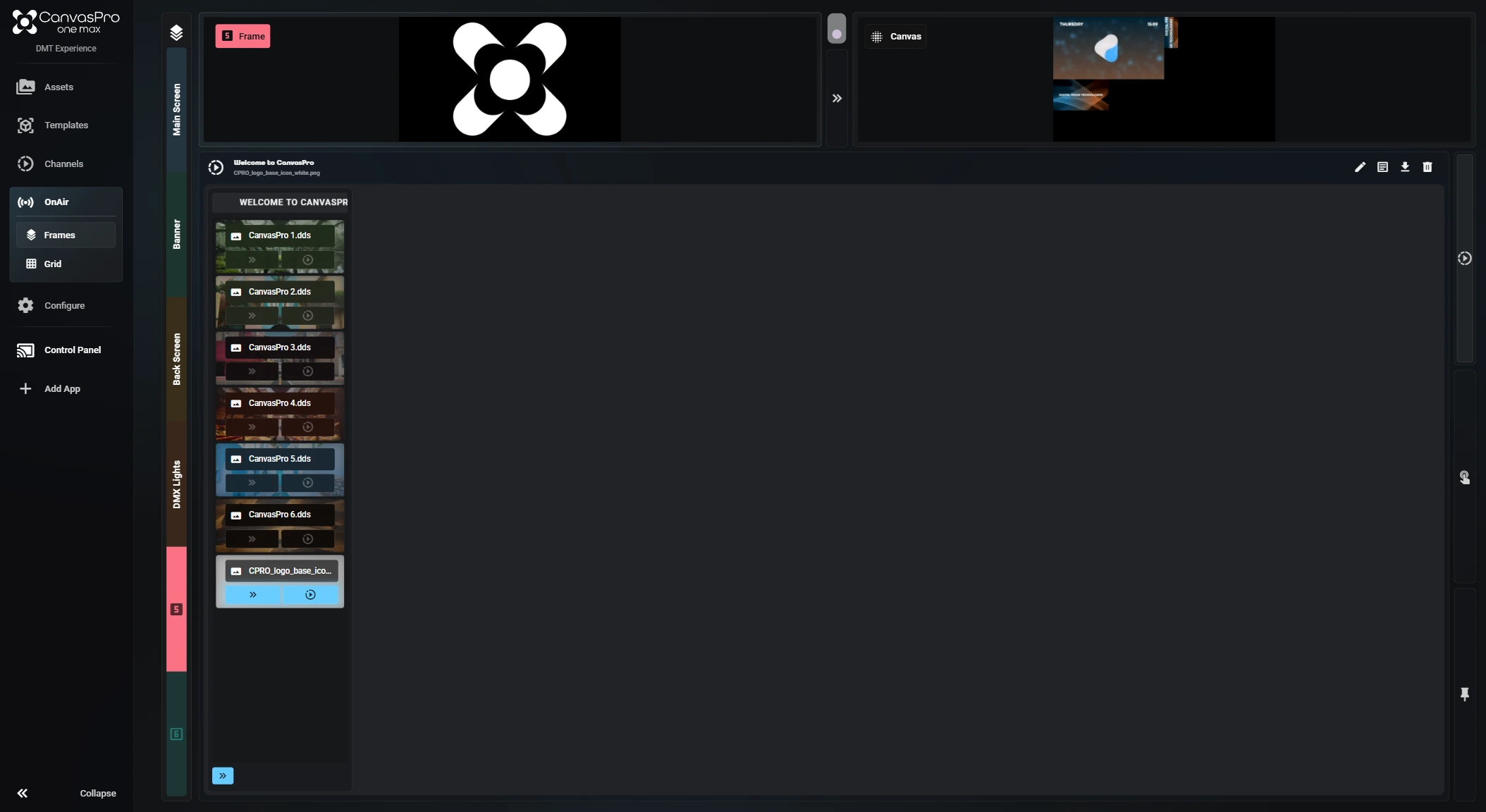
The On Air page shows a live preview of every frame and the whole canvas, kept in sync for every user and window connected.
| Control | What it does |
|---|---|
| Cue and Take | Cue a scene or template to the cue output without touching the main output, check it, then Take. Per frame or take all; optional auto-cue. |
| Force Live | Put a scene or queue on air now; the channel returns to its schedule afterwards. |
| Domination | Disabled, Interrupt or Play Next on queues and scenes, for sponsor reads, replays, ad breaks and emergency announcements. |
| Interact mode | Edit the live scene in real time; changes revert the next time the scene plays. |
| Pinned variables | Template variables an operator can edit from On Air without forcing the scene live. |
| Operator / Editor | On Air hides channel-editing controls until Editor mode is switched on. |
Lead with GPU formats for demanding 4K and 8K+ playback; use H.264 and H.265 where file size matters.
GPU playback
Decoded on the graphics card for smooth, high-resolution playback. Optional automatic conversion to HAP and DDS (BC7).
Efficient delivery
Practical file sizes, with NVIDIA hardware decoding where available. MPEG also supported.
Signals in and out
NDI 6 with audio, alpha and metadata; SDI and HDMI capture via Blackmagic DeckLink; SRT, RTSP and MJPEG streams; GPU outputs to displays and LED processors.
| Upload type | Accepted formats |
|---|---|
| Video | .mp4 .mov .mkv .avi .ts .m2ts .webm .wmv .asf .flv .f4v .mpeg / .mpg .vob |
| Audio | .mp3 .wav .flac .aac .m4a .wma .ogg |
| Images | .png .jpg / .jpeg .dds .bmp .tga .tif / .tiff .webp .gif (static) |
| Data & templates | .json · .vza · .cpre · .capp |
| Live sources | NDI 6 (auto-discovery on the subnet) · DeckLink inputs detected automatically · SRT, RTSP, MJPEG · web pages (HTML5) |
| Audio out | Per-frame and master volume; audio files, Audio template and NDI audio |
Alpha channels are supported in PNG images and in GPU video formats. Codec performance depends on the GPU and hardware fitted for each project.
Content can drive the systems around the screen as it plays, and the network footprint stays small: one inbound port on the local network and one outbound connection.
HTTP GET, POST, PUT and DELETE (with optional credentials), OSC over UDP and RS-232 commands fire when content plays. Triggers never block playback.
Bind live data into template variables, refreshed at least every 5 seconds.
A trigger can also start another scene, preset or asset.
For the IT team: the ports to open on the local network and the firewall.
| Port | Direction | Use |
|---|---|---|
| TCP 33333 | Inbound, local network | HTTPS web interface (always) |
| UDP 8555 | Inbound, local network | Live previews over WebRTC (recommended; falls back to 33333) |
| UDP 5353 · TCP 5959 · 5960+ · 6960+ · 7960+ | Local network | NDI discovery and streams (only when NDI is used) |
| TCP 443 | Outbound | Licence check-in (always); CanvasPro Cloud (only when used) |
mDNS does not cross subnets: use an NDI Discovery Server across VLANs. Error reporting is off by default.
Resilience
Security
Licensing
| Default role | Can access |
|---|---|
| Admin | Everything |
| Network Manager | Users, configuration, tags and logs; not content |
| Content Manager | Assets, templates, channels, apps and tags |
| App | App integrations only |
Create custom roles (for example an Operator role) to match each team. A user cannot grant more than their own permissions. iPad is supported and can be added to the Home Screen.
| Hardware change | Licence |
|---|---|
| Add drives, RAM or a new GPU | No action needed |
| Reinstall the operating system | No action needed |
| Replace boot drive, motherboard or CPU | Needs licence re-approval |
Updates are delivered as a full installer run over the existing installation; the database is backed up first. Activation needs an internet connection the first time.
Install CanvasPro, upload an asset and put content on screen in ten minutes. A first-run wizard names the machine and creates the administrator account.
One signed Windows installer
Support
Support runs Monday to Friday during contracted business hours, with contractual 24/7 critical-incident cover available. Requests go through the agreed service desk to a specialist engineer and, when needed, the named service manager.
Training can be delivered remotely, on site or as train-the-trainer.
Next step
Talk to us about outputs, inputs and integration for your site, or start with the documentation.

© 2026 Digital Media Technologies Ltd. CanvasPro is a platform by Digital Media Technologies Ltd. Registered in England and Wales, company number 07767134. Registered office: 13 Harforde Court, John Tate Road, Hertford, SG13 7NW. Ventuz, NDI, HAP, NotchLC, Blackmagic DeckLink, NVIDIA and Windows are trade marks of their respective owners.