
1Frame
20Channels
CanvasOne 4K screen

Technical overview · Signage player
How CanvasPro Orb and CanvasPro Orb Max play, connect and stay on screen: a guide for the engineers who deploy them and the teams who run them every day.
Technical overview · 2026
CanvasPro Orb and Orb Max share the same software and workflow. The licence sets the number of frames, the canvas and the number of channels.
CanvasOne 4K screen

CanvasTwo 4K screens
Video walls: Orb plays one picture per display. To span one image across several screens, use the graphics card's own spanning or an LED processor so Orb sees one large display.
Video, images and colour play through CanvasPro's own native GPU compositor. Web pages run in a built-in Chromium engine as one layer type, the way professional media servers do it.
Inputs
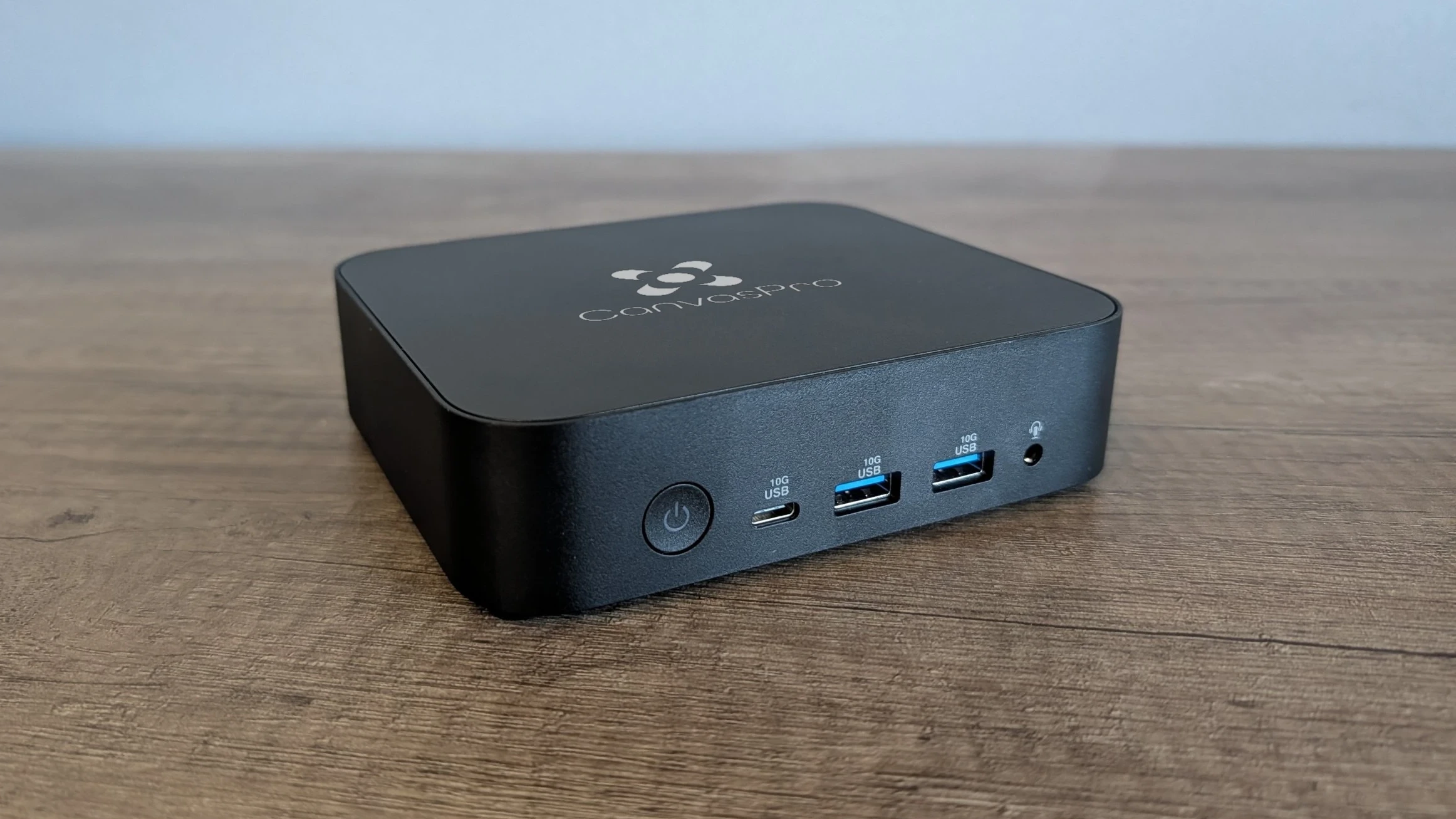
CanvasPro Orb player
Outputs & control
Hardware decoding
Video is decoded on the graphics hardware, so 4K plays on small, low-power PCs.
Self-healing
The player restarts itself if it stops, starts on its own after a power cut and reconnects dropped streams.
Plays offline
Everything plays from local storage, so screens keep running if the network or Cloud is unavailable.
Lead with HAP for the smoothest 4K on integrated graphics. H.264 and HEVC need hardware decoding, which every supported graphics platform provides.
| Format | Support on Orb |
|---|---|
| HAP · HAP Alpha · HAP Q · HAP Q Alpha · HAP R | GPU decode |
| H.264 | Hardware decode |
| H.265 / HEVC (incl. 10-bit) | Hardware decode |
| AV1 · VP9 · VP8 | Supported |
| Images | JPEG · PNG · WebP · GIF · BMP · TIFF · DDS |
| Alpha | PNG and WebP images · HAP Alpha variants |
| Live streams | RTSP · SRT · HLS · RTMP / RTMPS · UDP MPEG-TS · RTP · MJPEG over HTTP |
| Web | HTML with WebGL, WebGL2 and WebGPU |
Transitions
Crossfade (one second by default) or hard cut.
Picture controls
Saturation, lift, gain, rotation and flips, fit, crop or fill, alignment and underscan, per layer.
Live video inputs
Orb plays network streams; for SDI, HDMI or NDI sources, use CanvasPro One.
CanvasPro Orb OS is a Linux image made for Orb. It boots straight into the player with no desktop and no login screen. Windows 11 runs the same player from the same installer as CanvasPro One.
Write Orb OS to the machine's disk from the USB installer.
The player shows a code on screen. Scan it with a phone and paste the licence, or approve it in CanvasPro Cloud.
The licence is locked to that machine and the player starts. If anything is wrong, the phone says why.
| Orb OS | Detail |
|---|---|
| Platform | x86-64 PCs with UEFI |
| Graphics | Intel and AMD (recent generations), NVIDIA RTX 20-series and newer; one image for all |
| Storage | At least 32 GB; more recommended for media |
| Network | Ethernet and Wi-Fi, with automatic time sync |
| Displays | Resolution and rotation (0°, 90°, 180°, 270°) per output |
| Updates | No automatic updates. Orb OS is updated by re-imaging the machine. |
CanvasPro Cloud publishes channels to every Orb in a network. Each player downloads what it needs, installs the new schedule in one step and reports back.
Downloads are resumable and checked. If anything fails, the player keeps playing what it has. Content types: image, video, colour, web, text and live stream; Cloud video is H.264 or HEVC.
Every play of Cloud content is recorded per player and frame and uploaded every five minutes, then counted hourly and exportable as a per-play CSV.
For the IT team: the ports to open on the local network and the firewall.
| Port | Direction | Use |
|---|---|---|
| TCP 33333 | Inbound, local network | HTTPS web interface |
| UDP 8555 | Inbound, local network | Live previews (recommended; falls back to 33333) |
| TCP 443 | Outbound | Licence check-in and CanvasPro Cloud |
Nothing inbound from the internet. Live previews need a hardware H.264 encoder in the player (Intel, AMD or NVIDIA).
Security
Licensing
Support
Next step
Talk to us about your screens, locations and network.
Prefer email? hello@digitalmedia.tech

© 2026 Digital Media Technologies Ltd. CanvasPro is a platform by Digital Media Technologies Ltd. Registered in England and Wales, company number 07767134. Registered office: 13 Harforde Court, John Tate Road, Hertford, SG13 7NW. HAP, Chromium, Windows, Intel, AMD and NVIDIA are trade marks of their respective owners.